
I had a browse through the Inventor API documentation, and came across a sample for using the new “Browser Search” functionality. I converted it to iLogic and made a few tweaks.
When used in conjunction with a user parameter and an iLogic form, there is some nice functionality that you can use with Inventor.
The animated GIF below shows this in action:
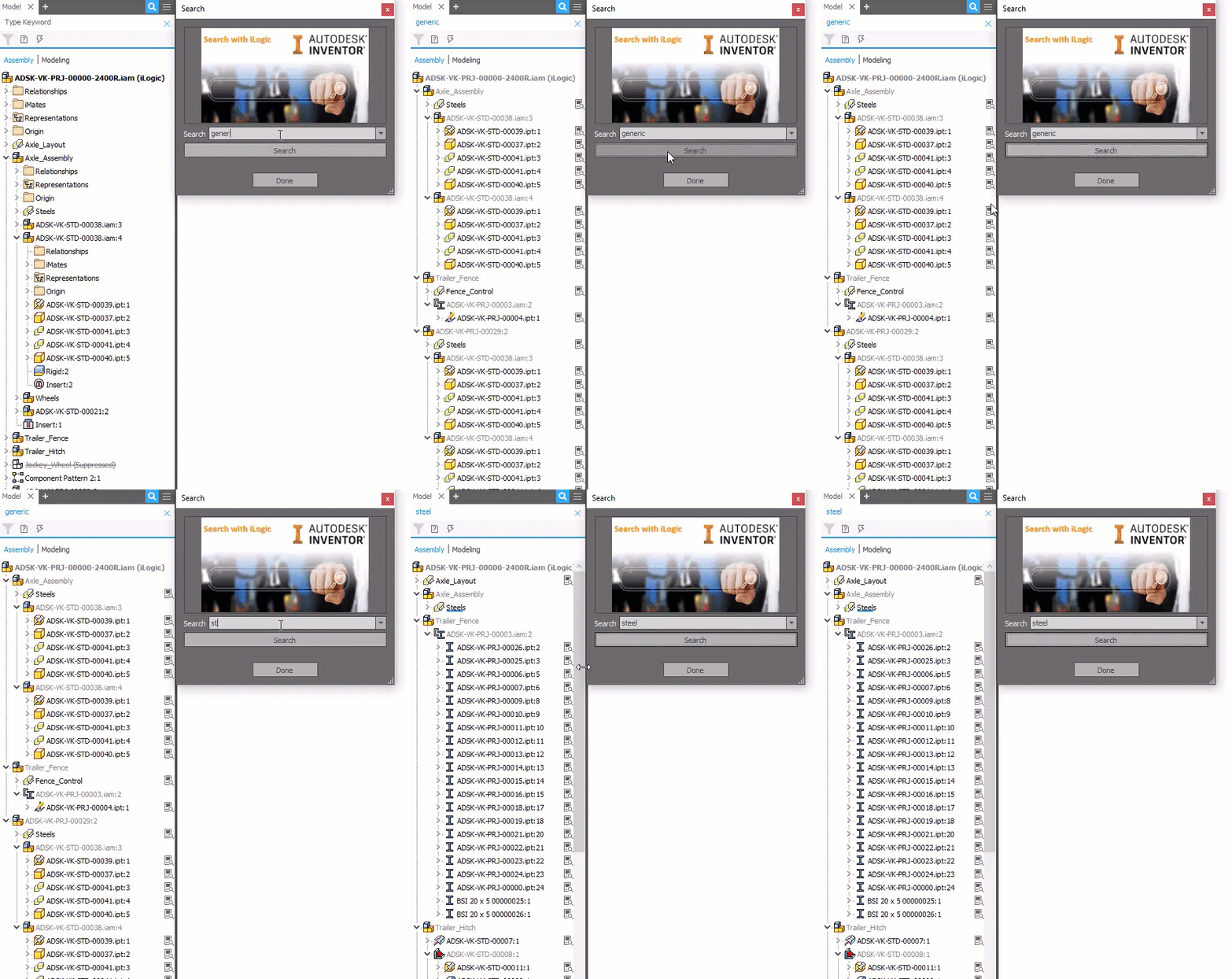
To set this up, you first need to create a custom TEXT parameter called “Search” (as shown below).

Then create an iLogic rule called “Search” using my code.
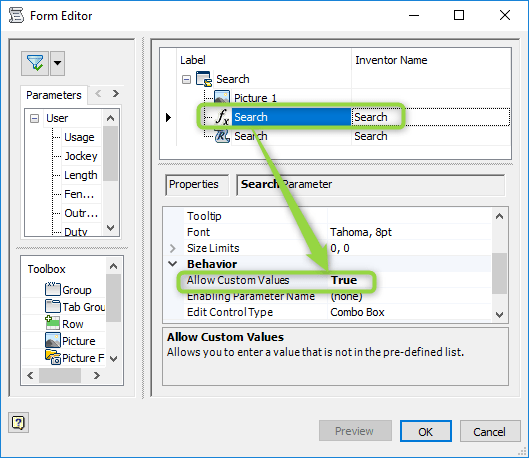
Next create a simple iLogic form, include the “Search” rule above and the Parameter called “Search”. You will need to tweak the “Search” parameter’s behaviour on the form to allow custom values.
Simply set “Allow Custom Values” to “True” under “Behaviours”
You should now be able to search the iProperties of your model from an iLogic form.
Here’s the code!
Sub Main()
'Code originally posted at https://clintbrown.co.uk/inventor-search-with-ilogic
'    Dim oDoc As Document
     oDoc = ThisApplication.ActiveDocument

    Dim oPane As BrowserPane
    ' Get the BrowserPane that support the search box.
    If oDoc.DocumentType = kPartDocumentObject Then
         oPane = oDoc.BrowserPanes("PmDefault")
    ElseIf oDoc.DocumentType = kAssemblyDocumentObject Then
         oPane = oDoc.BrowserPanes("AmBrowserArrangement")
    ElseIf oDoc.DocumentType = kDrawingDocumentObject Then
         oPane = oDoc.BrowserPanes("DlHierarchy")
    ElseIf oDoc.DocumentType = kPresentationDocumentObject Then
         oPane = oDoc.BrowserPanes("DxHierarchy")
    End If

    Dim oSearchBox As SearchBox
     oSearchBox = oPane.SearchBox
    ' Enable the search box and display it in the broser pane for search text.
    oSearchBox.Enabled = True
    oSearchBox.Visible = True
'   myparam = InputBox("Enter Search Term", "Search for a Property - @ClintBrown3D", "")
     myparam = Search
	Call oSearchBox.Search(myparam)
End Sub
 Clint Brown
You must be logged in to post a comment.