Printing directly from Fusion 360 is relatively straightforward, check out Option 1 (print Direct). However, you may need some additional options, or you might find yourself using a browser-based version of Fusion.
Option 2 – THE WEB BROWSER:
Another option for printing, is to print from the web (Fusion Team). This is particularly useful if you are using web-based version of Fusion, like the one we offer in Education. In this example, I’m going to do a test print to my tiny A7 thermal printer.
From the File Menu, click “View details on Web”.
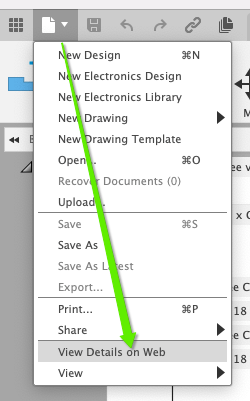
Click on the drawing thumbnail, the “Viewables” will be generated.

Now click on the Print icon and hit “Print” on the preview.
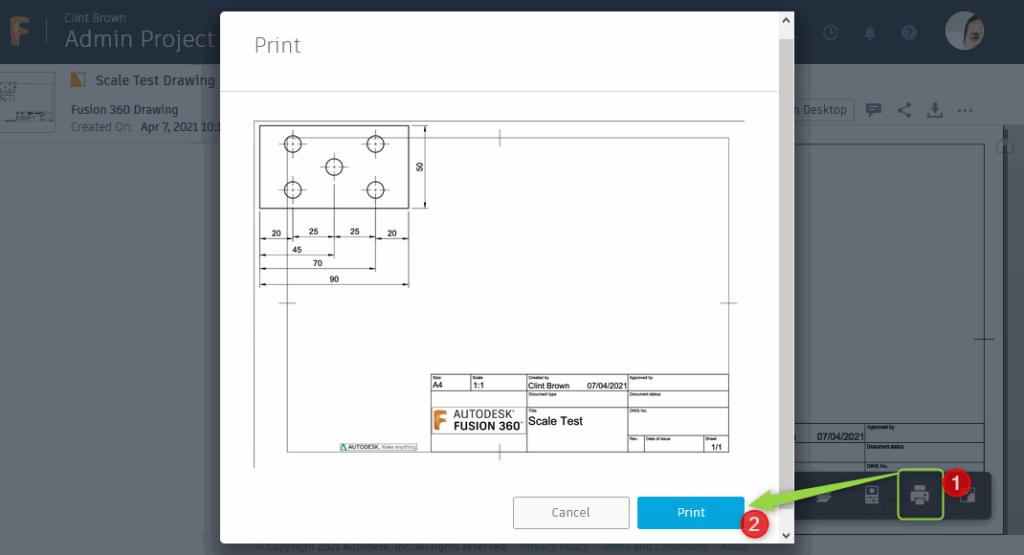
Choose the printer, paper size and scale. Note that my scale is 64 (more on that coming up).
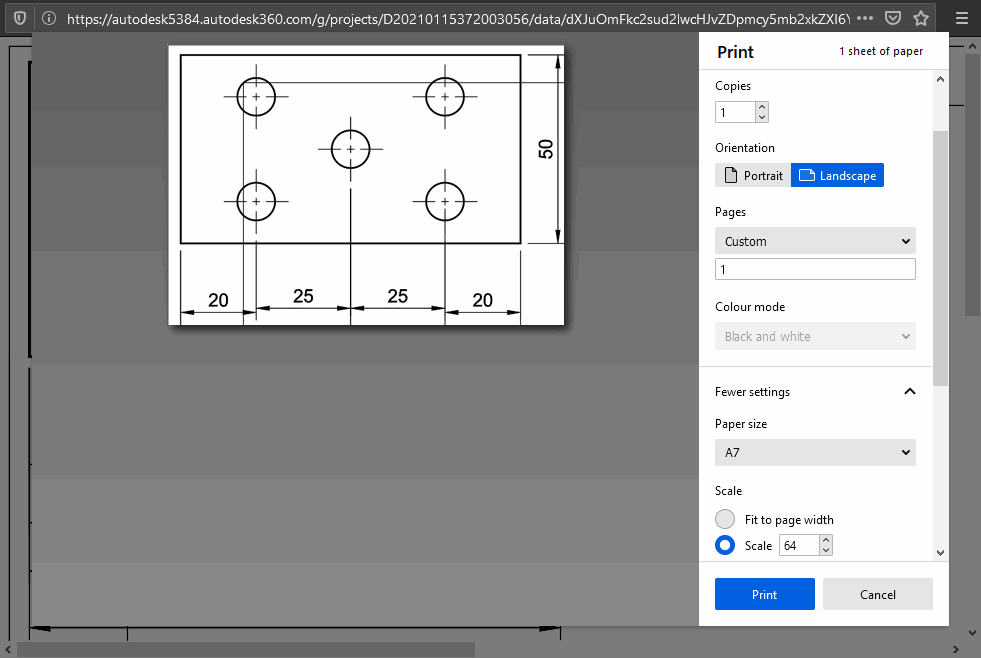
This will print to the selected printer at the scale selected.
How did I get my print to scale?
I mentioned at the top of this post that I was printing on my A7 thermal printer, it’s a tiny hand held printer. I figured that if I could get this to print 1:1, any printer should work!
My first print was set to a scale of 1:1, I set the “Pages” to “Custom” and “1” as shown above, which means that I would only print 1 page. This first print when measured, showed a value of 39 mm for a known value of 25 mm.
To get the second print right, I took 25 mm divided it by 39 mm which gave me my scale of 64.
25/39 = 0.641
Below are my results.
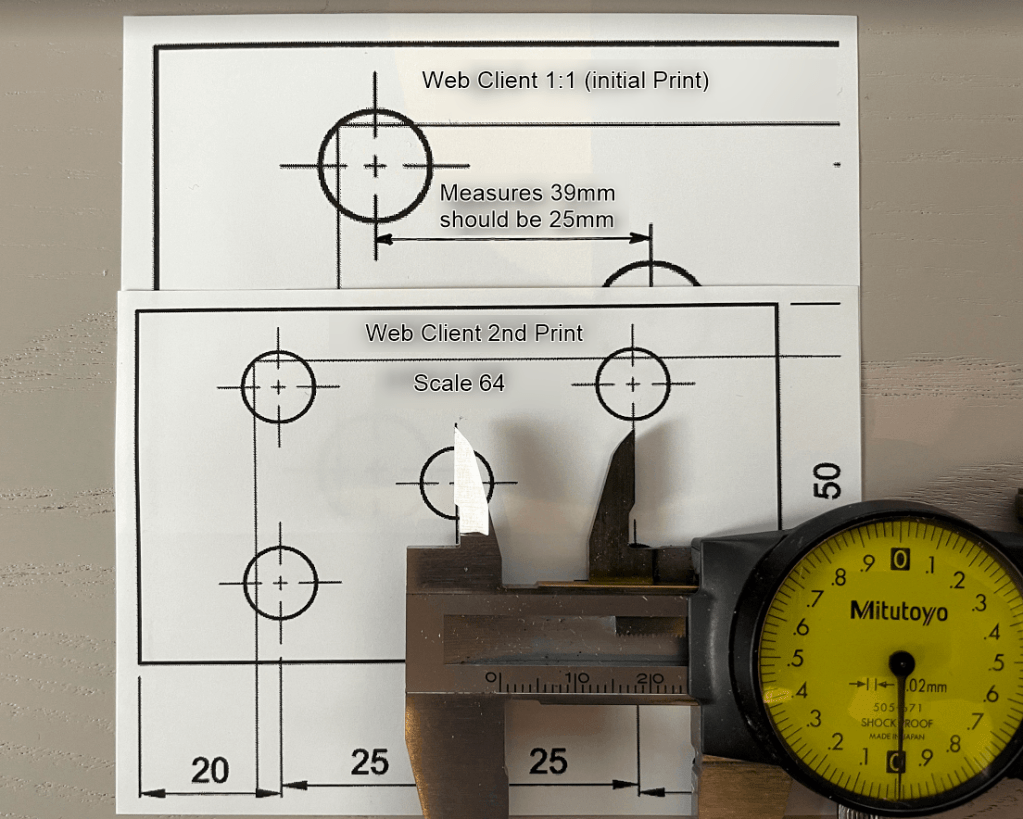
Some notes:
I chose to use this A7 printer for a few reasons, one of them is that there are no settings for it in Windows, it defaults to a page size of A4>A7, essentially shrinking anything down to fit. There are no controls over the margins or print area. The web client print settings let me override the defaults. You may have noticed that my drawing view crosses over the border, this was to ensure that I got as much of the view onto the tiny A7 page
| A7 | 2.9 x 4.1 inches | 74 x 105 millimeters |
 Clint Brown
You must be logged in to post a comment.