Fusion uses 3 options for templates when creating drawing Automations.
From Scratch
Uses Autodesk defaults. This is the workflow built to let you test drawing automation without any setup.

Drawing Template – Preferred workflow
Honors the settings in Template’s Document Settings. Create a template and save your settings in the template. Stores your automation settings, as well as your company Title Block, and all other document settings, like line types, colors etc.
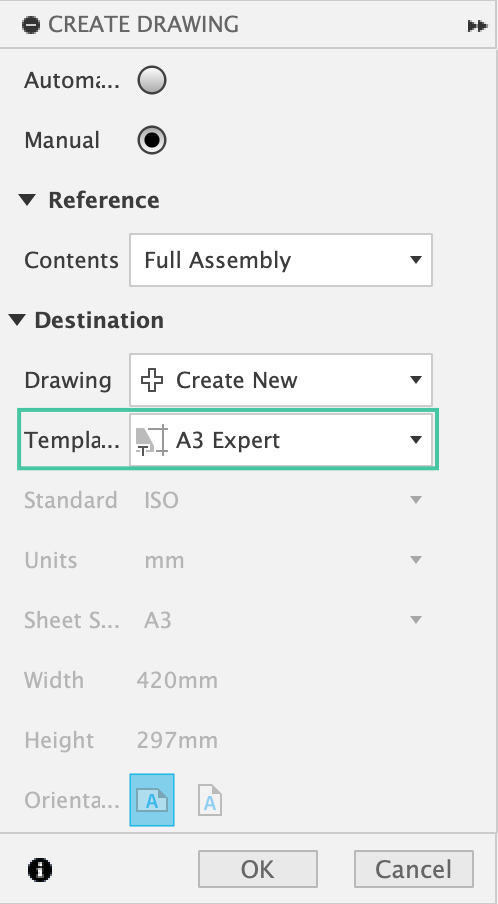
Smart Template – Legacy workflow
Note that a Smart Template is any drawing template with placeholder views
Smart templates ignore view placement settings in the Document settings. It will place views, as per the placeholders in your smart template.
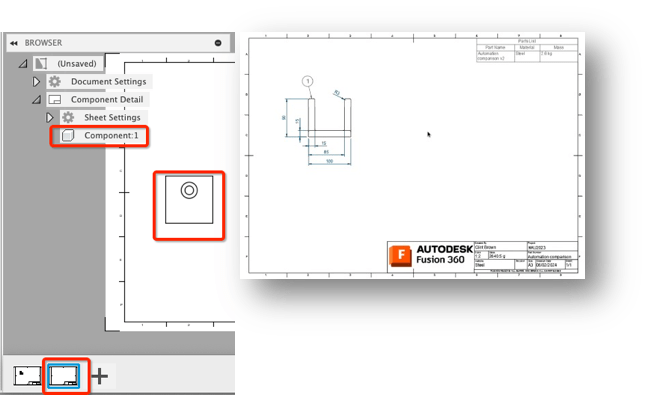
**deleting placeholder views, browser references & extra sheets will convert a “Smart Template” to a “Drawing Template”. Delete EVERYTHING highlighted in red above.
Automation Settings
Ideally, setup should be done in a drawing template.
Drawing Automation settings are ”Forward Create”, which means that the settings will not be applied to the current drawing, they will be applied to the next drawing created.
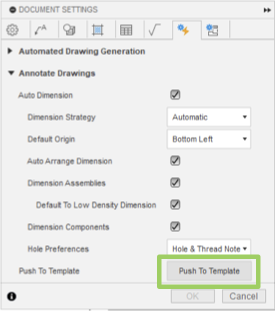
Remember that the settings in your Template are used for drawing creation. If you make changes to the Automation settings while in a drawing, make sure to “Push to Template”
Un-ticking “Auto Dimension” will create drawings without Auto Dimensions.
Omitting Fasteners & Standard Parts
Drawing Automation ignores standard fasteners from the Autodesk fastener library.
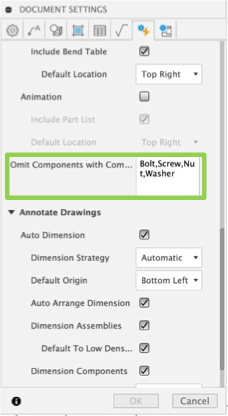
The “Omit list” (in Document settings) is designed to assist with removing other parts that a customer may not want drawing sheets for.
The “Omit list” allows a user to set additional components to ignore. Default settings are “Bolt, Screw, Nut or Washer”. This list is customisable & should be set in the drawing template.
The “Omit list” will not create drawings for any component named. For example; if a component is called “Walnut Base”, it will be omitted, as “nut” is listed in the omission list.
 Clint Brown
You must be logged in to post a comment.