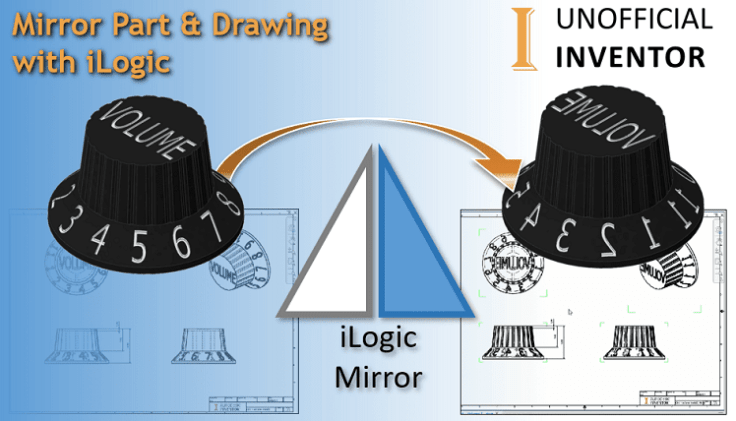
I wrote 2 iLogic utilities to help users with the creation of mirrored part files, and their accompanying drawings.
The first iLogic utility creates a mirrored version of a part file, and saves it with the suffix “_Mirror” (to the same location as the original). It works quite well and handles multi-body solids too.
One of the issues I found, was that if any of the open documents referenced the part I was creating a mirror of, these would be replaced with the new mirrored part. To counter this, I use the API to close all open documents and to not update any links (see reference in the code below). There may be a more elegant solution out there, if you have any ideas, feel free to submit a guest post.
'Close all open documents
ThisApplication.Documents.CloseAll(False) 'This ensures that the links are not changed in any open Assemblies or drawings
'https://adndevblog.typepad.com/manufacturing/inventor/page/64/
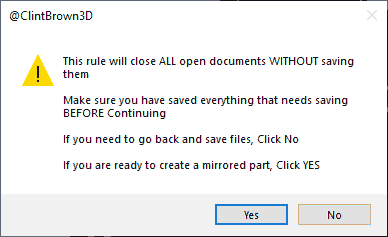
To make this a bit easier for the user, a message box pops up, explaining that all open documents will be closed without saving them, and they have an option to exit and save, or continue.
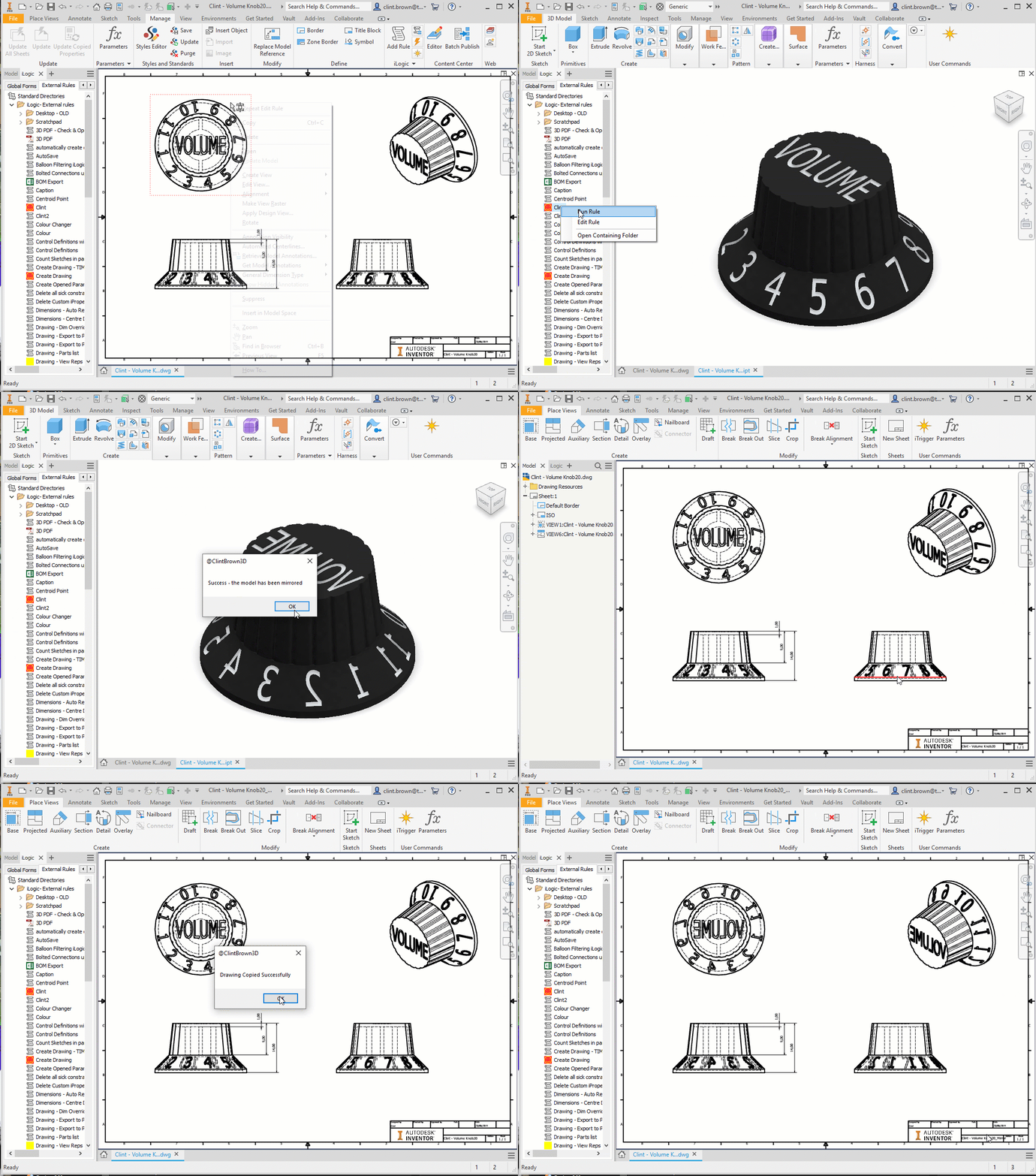
If the user clicks yes, the code springs into action, creating a copy of the original part, renaming it with the suffix “_Mirror”, the new model is briefly displayed, with a popup box explaining that the mirror has been successful. All open documents are now closed. Acknowledgement in the code to Rocky Zhang of Autodesk, who’s “part mirror” code I modified to work with multi-bodies solids.
The second iLogic routine (run from the drawing) creates a copy of the original drawing, saving it with the suffix “_Mirror”, it then replaces the reference to the original part file with the mirrored version. If no mirrored file exists, a message informs the user.
Below is a GIF of the code in action. I have briefly tested this with Inventor 2020.1, see notes at the bottom.
Here is the first rule, to be run in the part file:
'Code by @ClintBrown3D
'Originally posted at https://clintbrown.co.uk/mirror-part-and-drawing-with-ilogic
On Error GoTo Messager
i = MessageBox.Show("This rule will close ALL open documents WITHOUT saving them" & vbNewLine & vbNewLine & "Make sure you have saved everything that needs saving BEFORE Continuing" & vbNewLine & vbNewLine & "If you need to go back and save files, Click No" & vbNewLine & vbNewLine & "If you are ready to create a mirrored part, Click YES", "@ClintBrown3D", MessageBoxButtons.YesNo, MessageBoxIcon.Warning, MessageBoxDefaultButton.Button1)
If i = vbYes Then : GoTo ClintBrown3D : Else : GoTo ClintBrown1 : End If

'Get file Names
ClintBrown3D:
	oNaam = ThisDoc.PathAndFileName(False)
	oNaam1 = ThisDoc.PathAndFileName(True)

' Check if mirrored part exists - If it does, opening existing part
	If System.IO.File.Exists(oNaam + "_Mirror" + ".ipt") Then
	MessageBox.Show("Mirrored Part Already Exists > Opening Existing Mirrored Part", "@ClintBrown3D")
	ThisDoc.Launch(oNaam + "_Mirror" + ".ipt")
	Return
	End If

'Save a copy of the file
ThisDoc.Document.SaveAs(oNaam + "_Mirror" + ".ipt", False)

'Count the Solid bodies in the part file
oNaam3 = ThisApplication.ActiveDocument
oSolidBodyCounter = oNaam3.ComponentDefinition.SurfaceBodies.Count
'MsgBox(oSolidBodyCounter)

'Mirror Part: 	'This piece of the code adapted from the VBA sample by Rocky Zhang of Autodesk
'https://forums.autodesk.com/t5/inventor-customization/vba-mirror-solids-in-part-file/td-p/2980968
	Dim oDoc As PartDocument
	oDoc = ThisApplication.ActiveDocument
	Dim oCol As ObjectCollection
	oCol = ThisApplication.TransientObjects.CreateObjectCollection
	oCol.Add (oDoc.ComponentDefinition.SurfaceBodies(oSolidBodyCounter))
	Dim oPlane As WorkPlane
	oPlane = oDoc.ComponentDefinition.WorkPlanes(1)
	Dim oMirror As MirrorFeature
	oMirror = oDoc.ComponentDefinition.Features.MirrorFeatures.Add(oCol, oPlane, True, kOptimizedCompute)
	oMirror.Name = "@ClintBrown3D"

'Save the new Mirrored Part File
	ThisDoc.Document.Save
	MessageBox.Show("Success - the model has been mirrored", "@ClintBrown3D")

'Close Copy and Launch Original
	ThisDoc.Launch(oNaam1)

'Close all open documents
ThisApplication.Documents.CloseAll(False) 'This ensures that the links are not changed in any open Assemblies or drawings
'https://adndevblog.typepad.com/manufacturing/inventor/page/64/
Return

ClintBrown1 :
	MessageBox.Show("Exititing Rule - No changes made", "@ClintBrown3D")
Return

Messager :
	MessageBox.Show("SOMETHING HAS GONE WRONG !!!"& vbNewLine & vbNewLine & "You can only run this rule from a part file", "@ClintBrown3D")
Here is the second rule, which is run from the drawing file:
'Code By @ClintBrown3D
'Originally posted at https://clintbrown.co.uk/mirror-part-and-drawing-with-ilogic

'Check if this is a drawing file
Dim doc = ThisDoc.Document
If doc.DocumentType = kDrawingDocumentObject Then

On Error GoTo ClintBrown3D
'Get the name of the model
	oPartPath1 = IO.Path.GetFullPath(ThisDrawing.ModelDocument.FullFileName)
	oPartPath2 = Left(oPartPath1, Len(oPartPath1) - 4)
	oPartPath = oPartPath2 + "_Mirror.ipt"
	oPartPath3 = oPartPath2 + "_Mirror.dwg"

'Save a copy Of the drawing:
	ThisDoc.Document.SaveAs(oPartPath3, False)
	MessageBox.Show("Drawing Copied Successfully", "@ClintBrown3D")

'Replace Drawing Reference
	doc = ThisDoc.Document
	Dim oFileDesc As FileDescriptor
	oFileDesc = doc.ReferencedFileDescriptors(1).DocumentDescriptor.ReferencedFileDescriptor
	oFileDesc.ReplaceReference(oPartPath)
	doc.Update()

'Update the title block - with curent date and correct drawing name (from model)
	oGetTheName = ActiveSheet.View("VIEW1").ModelDocument.DisplayName
	oGetStringLength = Len(oGetTheName)
	oName = Mid(oGetTheName,1,(oGetStringLength-4))
	iProperties.Value("Project", "Part Number") = oName
	iProperties.Value("Project", "Creation Date") = Now
	iLogicVb.UpdateWhenDone = True

'Save this drawing
	ThisDoc.Save
End If
Return

ClintBrown3D :
MessageBox.Show("Model Not found", "@ClintBrown3D")
Notes:
This version of the code was briefly tested with Inventor 2020.1
Please note that I cannot offer any additional support, this blog post is offered as-is, and is aimed at the more advanced user.
As always, please test all iLogic code extensively on non-production files. Do not use any code in a production environment until YOU have thoroughly tested it and have verified that it works as expected. Always back up any data before running any experimental code. You are ultimately responsible for any iLogic code that you run, so make sure you test it thoroughly!
I have written this code to only support DWG files, if you are still using IDW, I suggest that you read this article, but you should be able to change the extension in the code and it will most likely work without any issues.
 Clint Brown
You must be logged in to post a comment.